How to Install a POS Thermal Printer Driver on Linux Debian and Ubuntu
Thermal printers are commonly used in point-of-sale (POS) systems to print transaction receipts. If you use Pinodesk on Linux, you need to make sure your printer is properly installed and configured before printing receipts.
In this guide, we will walk through the process of installing the Linux printer driver provided by Rongta on Debian and Ubuntu.
Download the printer driver
Before starting the installation, download the printer driver package below.
Download POS thermal printer driver for Linux (.tar.bz2)
The package includes driver options for 58 mm and 80 mm paper widths, with separate directories for 32-bit and 64-bit Linux systems.
You can also find the original driver on the official Rongta website.
Prerequisites
Before proceeding, make sure you have:
- A computer running Linux Debian or Ubuntu.
- A compatible POS thermal printer.
- The
unbuntu_rt58_80.tar.bz2driver package. - A USB cable to connect the printer to your computer.
We will use the Terminal to run the installation commands.
1. Check your system architecture
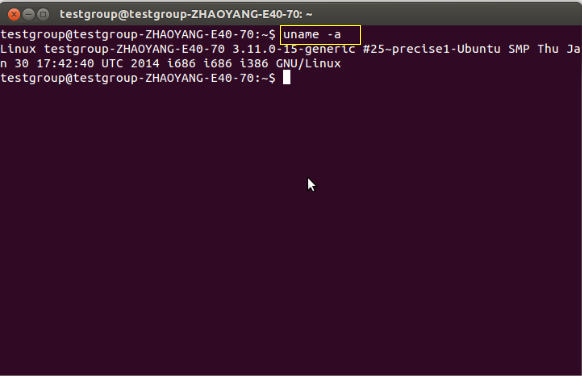
First, check your Linux system architecture.
Open the Terminal and run:
uname -mIf the output is x86_64, your system uses a 64-bit architecture. Outputs such as i386, i486, i586, or i686 indicate a 32-bit architecture.
2. Extract the driver package
After downloading the driver, open the directory where the file is saved. If it is in your Downloads directory, run:
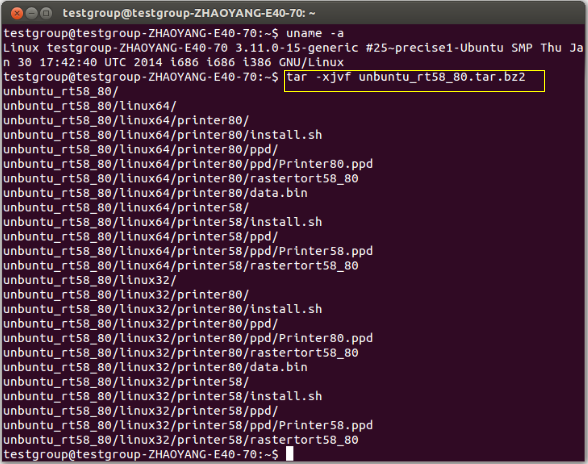
cd ~/DownloadsExtract the package using the following command:
tar -xjvf unbuntu_rt58_80.tar.bz2Once extraction is complete, locate the extracted driver directory.
3. Select the driver for your printer
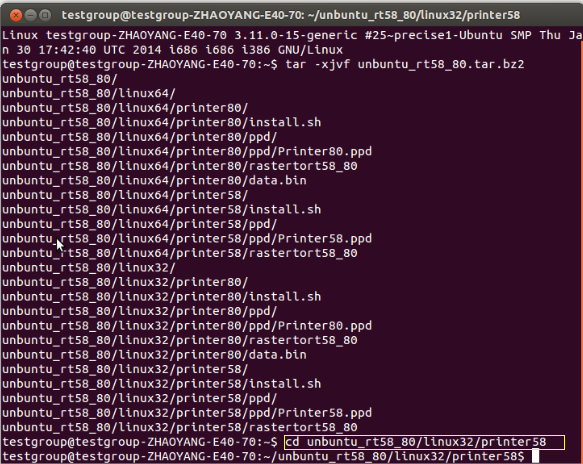
Choose the driver directory based on your printer’s paper width and your system architecture.
For 58 mm printers
Linux 64-bit:
cd unbuntu_rt58_80/linux64/printer58Linux 32-bit:
cd unbuntu_rt58_80/linux32/printer58For 80 mm printers
Linux 64-bit:
cd unbuntu_rt58_80/linux64/printer80Linux 32-bit:
cd unbuntu_rt58_80/linux32/printer80Adjust the directory path if you extracted the package elsewhere. Make sure the directory structure matches the contents of the downloaded package.
4. Install the printer driver
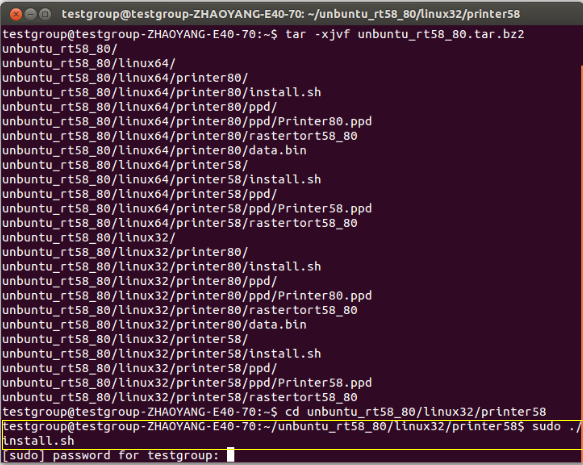
Once you are in the correct driver directory, run:
sudo ./install.shEnter your Linux user password when prompted, then press Enter.
The Terminal usually does not display characters while you type your password. This is normal.
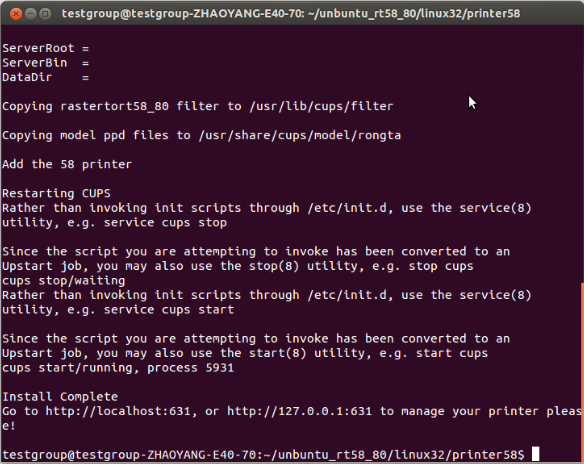
Wait for the installation to finish. If an error occurs, check that you are in the correct directory and that the install.sh file exists. The message Install Complete will be displayed after successful installation.
5. Check the installed printer
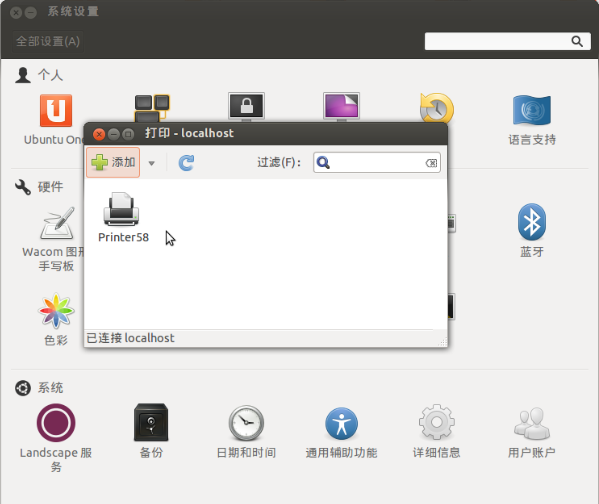
After the installation is complete, open your Linux system settings and navigate to Printers.
Check whether the printer appears in the list. If it does not, make sure the printer is powered on and connected to your computer via USB.
If necessary, reopen the printer settings or check the available printer list to verify that the device has been detected.
6. Test receipt printing with Pinodesk
Once your printer is installed, you can proceed with configuring it in Pinodesk.
If you have not installed Pinodesk yet, visit the Pinodesk Download page to get the application.
For instructions on getting started and setting up the application, see the Pinodesk Getting Started guide.
After completing the configuration, print a test receipt to make sure everything works as expected.
If the printer is detected by Linux but does not print from Pinodesk, check the selected printer and the application’s printing configuration.
Conclusion
That is how to install a POS thermal printer driver on Linux Debian and Ubuntu. With the appropriate driver installed, you can prepare your printer for use with Pinodesk.
If you encounter any issues, double-check your printer model, paper width, system architecture, and driver directory.
Happy printing!